
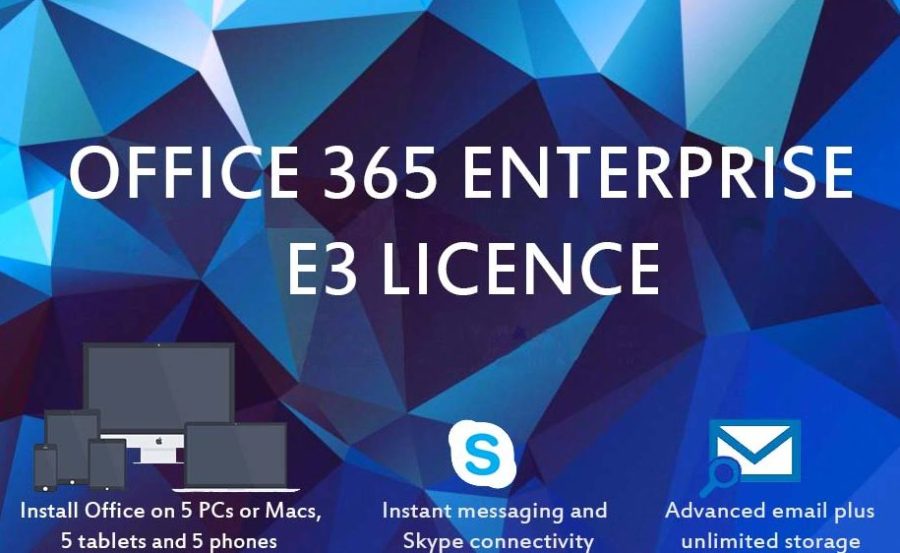
Microsoft offer several different licencing plans for their products and services. We’re going to focus on Office Enterprise E3, a licence similar to Enterprise E1- both of which come with Exchange online, SharePoint, instant message with Skype and Outlook on both desktop and web browser. Enterprise E3 however, has the following advanced capabilities: Self-service Business Intelligence to discover, analyse and visualise data in Excel and Compliance Solutions to support archiving, auditing and eDiscovery.
The licence also comes with the added bonus of having the option to choose between either the entire Office 2016 suite or the entire Office 2013 suite when installing Office onto your device. And with this licence you can install this version of Office across 5 PCs or Macs, 5 tablets and 5 phones.
When downloading Office onto your desktop you should follow these steps:
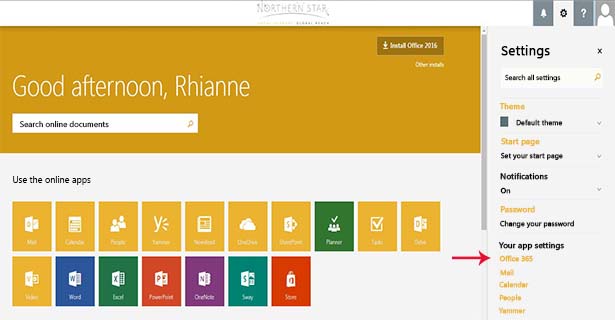
Step 1: Log onto your Office 365 homepage.
Click on the Settings symbol situated in the top right hand corner.
The menu will drop down and you click Office 365 as shown in the image above by the red arrow.
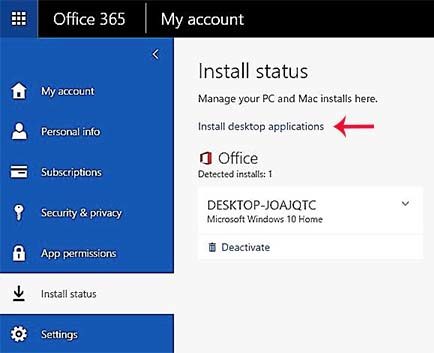
Step 2: In account settings click on Install Status (which allows you to view all devices which have office installed, covered by the E3 Licence).
In the sub section that appears, click Install desktop applications as indicated by the red arrow in the image above.
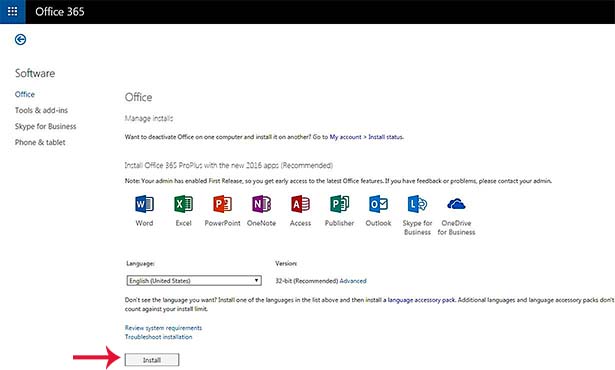
Step 3: Click Install
N.B. Before clicking Install, if you select the option to ‘review system requirements’, you should get redirected to a page which recommends the version of Office to install on your device for maximum functionality.
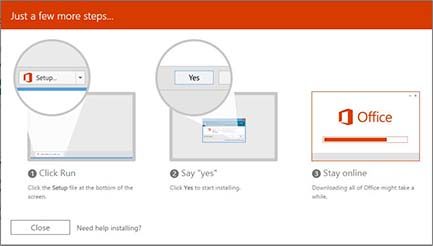
Step 4: Once Office has download and you follow the instructions in the pop up above you should have Office (2013 or 2016) installed in no time!
If you have any trouble during this process or would like to know anymore information feel free to get in contact with one of our engineers for advice.