
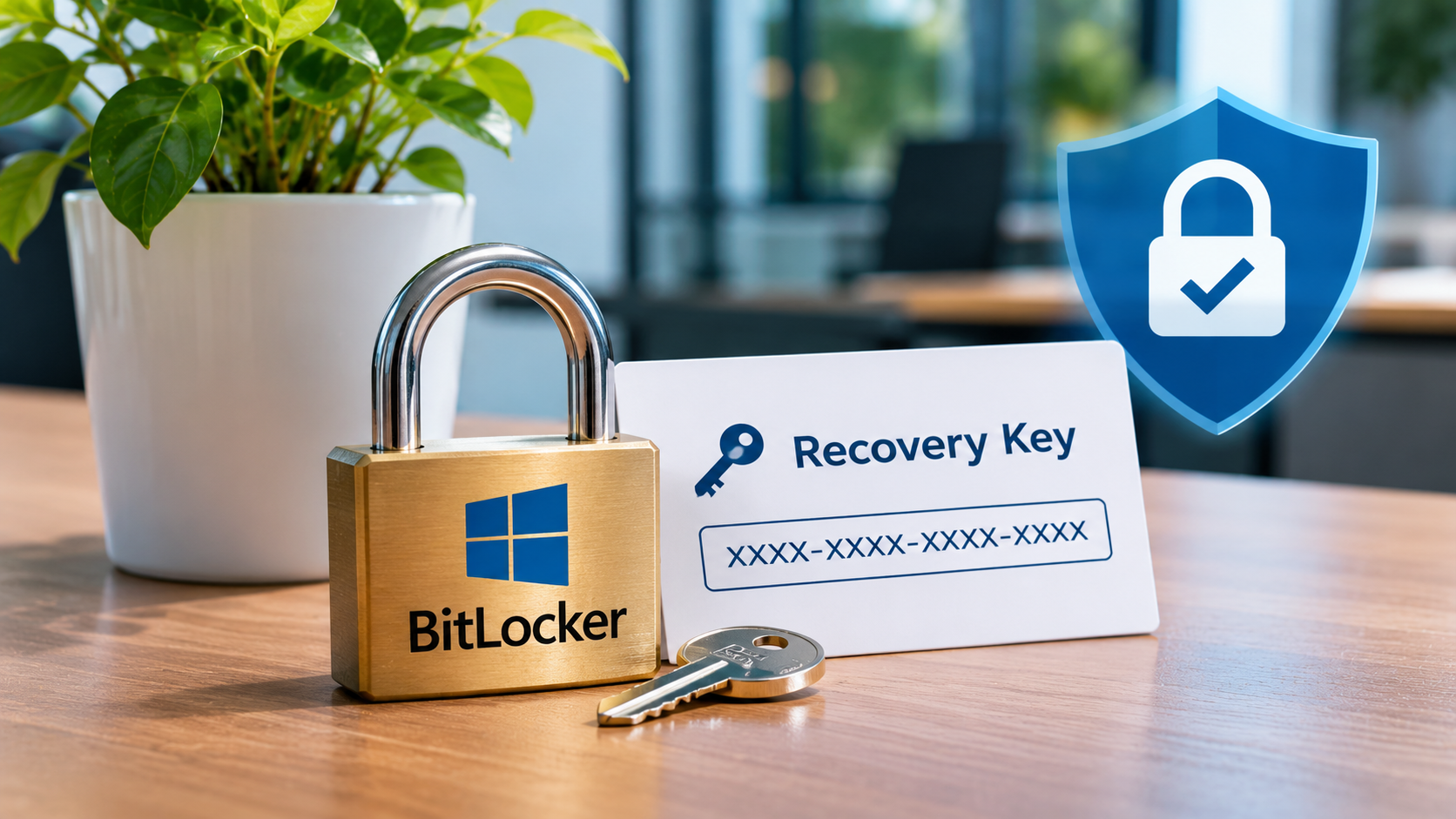
A BitLocker recovery key missing from your business laptop can leave you unable to access important files, applications and systems. The problem usually occurs because the recovery key was never backed up correctly, was saved to an unexpected Microsoft account, or cannot be found in your organisation’s device management system. If you’re locked out, check Microsoft Entra ID, Active Directory or the original Microsoft account before resetting anything. For businesses, the most effective prevention is to centrally store recovery keys, verify that backups have succeeded and maintain a clear recovery process.
BitLocker is an important Windows security feature, but encryption is only useful when you can recover your devices if something goes wrong.
For a London business with employees working remotely, travelling between offices or handling sensitive client information, losing access to a laptop can quickly become more than an IT inconvenience.
Understanding why recovery keys go missing, where to find them and how to prevent future problems can help you avoid unnecessary downtime.
What is a BitLocker recovery key and why does Windows ask for it?
A BitLocker recovery key is a 48-digit numerical password that allows you to unlock an encrypted Windows drive when its normal unlocking process cannot be completed. Windows may request this key after certain firmware changes, hardware modifications or changes to security settings. The recovery process protects your information from unauthorised access, but it also means that legitimate users can be locked out.
BitLocker uses encryption to protect information stored on Windows devices.
On compatible computers, the Trusted Platform Module (TPM) helps protect the encryption keys and checks whether important startup components have changed.
If Windows detects a change it cannot validate, BitLocker may enter recovery mode.
This can happen following:
- BIOS Or UEFI Firmware Updates
- TPM Configuration Changes
- Hardware Replacements Or Repairs
- Changes To Secure Boot Settings
- Unexpected Boot Configuration Changes
- Certain Windows Recovery Or Maintenance Operations
Not every update or hardware change triggers recovery. Properly managed updates can often avoid unnecessary interruptions.
According to Microsoft’s BitLocker recovery documentation, organisations should establish recovery procedures and securely store recovery information before employees need it.
Microsoft Learn
Why do BitLocker recovery keys go missing?
BitLocker recovery keys usually become difficult to find because of how they were originally stored or managed, rather than because encryption has suddenly deleted them.
The most common problems involve incomplete device configuration, incorrect accounts, missing backups or changes to the organisation’s IT environment.
The recovery key was never backed up
A laptop may be encrypted without the business having a reliable, centrally accessible copy of its recovery password.
This is particularly concerning when devices are configured manually or when encryption settings vary between employees.
If key backup has not been verified, the problem may remain unnoticed until Windows requests recovery.
The key was saved to the wrong Microsoft account
A laptop purchased for business use may originally have been configured using an employee’s personal Microsoft account.
Its recovery key could therefore be associated with that account rather than the company’s Microsoft 365 environment.
For example, imagine an employee uses their personal account when setting up a laptop, then later connects it to your organisation’s systems.
If the device requests recovery several months later, your IT administrator may find no matching key in the expected company directory.
This is why consistent device setup matters.
Device management records are incomplete
Organisations using Microsoft Intune, Microsoft Entra ID or Active Directory can centrally manage recovery information.
However, administrators still need to confirm that the appropriate recovery details have been successfully stored.
A device appearing in an inventory does not, by itself, prove that its BitLocker recovery password is available.
The recovery password has changed
BitLocker recovery passwords can be rotated following recovery or through device management tools.
An older saved password may no longer unlock the drive.
If your business maintains separate copies of recovery information, administrators must ensure those records reflect the current password.
Where should you look for a missing BitLocker recovery key?
The correct location depends on how your laptop was configured, whether it belongs to your organisation and which management systems are being used.
|
Device configuration |
Where to check |
Who can help |
|
Microsoft Entra joined laptop |
Microsoft Entra ID device records |
Authorised IT administrator |
|
Microsoft Intune managed laptop |
Intune admin centre or supported Company Portal recovery options |
IT support team |
|
Active Directory joined laptop |
Active Directory computer object and BitLocker Recovery tab |
Domain administrator or authorised support staff |
|
Personal Microsoft account setup |
Microsoft account recovery key records |
Original account holder |
|
Manually configured encryption |
Approved recovery key files, printed records or secure storage |
Device owner or IT administrator |
The table covers common recovery locations, but the actual location depends on your encryption configuration and whether key backup was completed successfully.
Step 1: Record the recovery key ID
When BitLocker requests recovery, the screen normally displays a recovery key ID.
Record this identifier before searching.
It helps you distinguish between recovery passwords, especially when several records are associated with the same device.
Do not confuse the recovery key ID with the actual 48-digit recovery password.
Step 2: Check Microsoft Entra ID
For an organisation-managed laptop, your IT administrator should identify the device in Microsoft Entra ID and inspect its BitLocker recovery information.
The administrator needs appropriate permissions to view the recovery password.
If multiple passwords are available, the recovery key ID helps identify the correct one.
Step 3: Check Active Directory
If your organisation uses on-premises Active Directory, authorised administrators can inspect the computer object’s BitLocker recovery information.
Microsoft also supports searching for recovery passwords through the BitLocker Recovery Password Viewer.
This can be particularly useful for businesses operating older domain-based environments.
Step 4: Check the original Microsoft account
If the laptop was originally configured using a personal Microsoft account, check that account’s recovery key records.
This is worth investigating when a laptop was purchased independently and later introduced into the company.
Step 5: Check approved offline records
Some organisations save recovery information in an approved secure location outside their primary device management system.
Check documented recovery procedures rather than searching indiscriminately through shared folders or employee emails.
Recovery passwords should be treated as sensitive credentials.
What happens if your BitLocker recovery key cannot be found?
If no valid recovery password or other configured recovery method is available, you may be unable to access the encrypted information. Microsoft cannot recreate a lost recovery key. Resetting or reinstalling Windows may make the laptop usable again, but it can also erase the encrypted files. Before taking that step, your IT team should exhaust legitimate recovery options and establish whether the business has usable backups.
Avoid repeatedly changing security settings in an attempt to bypass encryption.
Instead, investigate whether a recent firmware or configuration change triggered recovery.
Where appropriate, an experienced administrator may be able to reverse the triggering change without weakening device security.
If recovery is impossible, replacement or reinstallation may be necessary.
This is where reliable data backups and properly managed hardware and software support become especially important.
The aim is not simply to make the laptop work again, but to restore the employee’s access to their applications and business information.
How can businesses prevent missing BitLocker recovery keys?
The most reliable approach is to treat recovery key management as part of your normal IT operations rather than something to investigate after a laptop becomes inaccessible.
Your business should know where recovery passwords are stored, who can retrieve them and how their availability is verified.
1. Store recovery passwords centrally
For Microsoft Entra joined devices, configure appropriate recovery password backup to Microsoft Entra ID.
For traditional Active Directory environments, configure recovery information storage in Active Directory Domain Services.
Where supported, policies should prevent encryption from proceeding until the required recovery information has been successfully stored.
2. Verify recovery information during device setup
Do not assume that enabling BitLocker means the recovery password is safely backed up.
Your onboarding process should confirm that the device is correctly registered, encryption is active and its recovery information can be retrieved.
This is particularly important when employees receive replacement laptops or work from different offices.
3. Review your device management policies
A properly configured Microsoft Intune environment can help administrators manage encryption settings and recovery information consistently.
Review key rotation, administrator permissions and recovery access regularly.
If you need assistance reviewing these arrangements, professional IT consulting services in London can help you assess device policies alongside wider infrastructure requirements.
4. Control access to recovery passwords
Recovery passwords can unlock encrypted information, so they should not be freely accessible throughout your business.
Use appropriate administrative permissions, verify employee identities before disclosing passwords and maintain records of recovery activity where supported.
5. Plan for device maintenance
Before significant firmware changes or hardware maintenance, your IT team should confirm that recovery information is available.
Where appropriate, administrators can temporarily suspend BitLocker protection for planned maintenance, following Microsoft’s documented procedures.
This should be carefully controlled, with protection restored and verified afterwards.
6. Test the recovery process
A recovery procedure is only useful if it works when needed.
Periodically check a sample of managed devices to confirm their recovery passwords are available to authorised personnel.
You should also confirm that the business can recover a device when its usual administrator is unavailable.
Why BitLocker recovery planning matters for UK SMEs
For smaller businesses, a locked laptop can interrupt work across several departments.
Consider an accountancy practice where an employee’s laptop enters BitLocker recovery shortly before a client deadline.
Even if important documents are stored securely in the cloud, the employee may still be unable to access locally installed software, authentication tools or applications needed to complete their work.
The practical consequences depend on how your systems are configured.
Businesses using multiple offices or supporting international employees may face additional challenges when their IT teams cannot physically access affected devices.
Consistent recovery procedures are particularly valuable in these environments.
Good recovery planning should also form part of your wider security arrangements, including access controls, endpoint management and business continuity.
For organisations reviewing their security responsibilities, Cyber Essentials support in London can help assess relevant cyber security controls, although BitLocker recovery key management is not itself a standalone Cyber Essentials certification requirement.
Frequently asked questions
Can a BitLocker recovery key disappear after a Windows update?
A Windows update does not normally delete your BitLocker recovery key. However, certain firmware, boot or security changes associated with maintenance can trigger recovery. The key may already be missing from your expected storage location, or you may be looking at an outdated record. Check your organisation’s management systems and the recovery key ID before taking further action.
Can IT support recover a laptop without the BitLocker recovery key?
IT support can investigate alternative authorised recovery methods, locate securely stored passwords and check whether a recent configuration change can be reversed. However, it cannot simply bypass properly functioning BitLocker encryption. If no usable recovery method exists, access to the encrypted information may be impossible.
Should businesses disable BitLocker to avoid recovery problems?
Generally, no. Disabling encryption can expose sensitive information if a laptop is lost or stolen. The better approach is to improve recovery password storage, device management and maintenance procedures. Your business can then retain the protection provided by encryption while reducing the risk of employees being unnecessarily locked out.
Protect your business laptops with Northern Star
A missing BitLocker recovery key can turn an otherwise routine device issue into a serious interruption.
The best time to address the problem is before an employee encounters the recovery screen.
Northern Star helps businesses manage IT infrastructure, hardware, software and security arrangements, with support tailored to their operational requirements.
Whether you need to review laptop configuration, improve device management or establish more reliable recovery procedures, our team can help you identify practical improvements.
Contact Northern Star on 0800 319 6032 or email sales@northernstar.co.uk to discuss your business IT support requirements.