
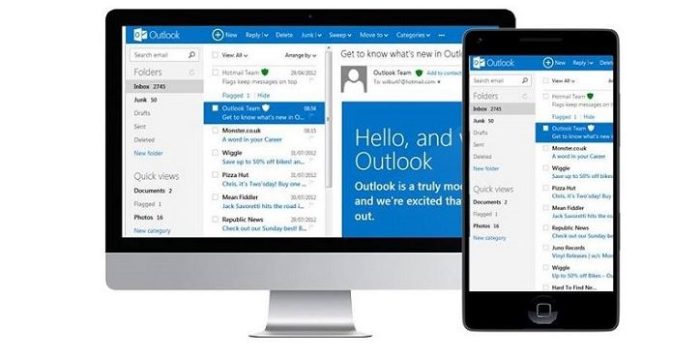
Setting up Office 365 Mail on your iPhone or iPad should be straightforward, but it is worth doing it properly. Your email is not just where messages arrive. It is where meeting invites, client updates, shared files, password resets, approval requests and day-to-day business decisions often begin.
If your Microsoft 365 account is not set up correctly on iOS, you may find that emails do not sync, calendars are missing, contacts do not appear, or your device keeps asking you to sign in again. For business users, that can quickly become frustrating.
This guide explains how to set up Office 365 Mail on iOS using the built-in Apple Mail app, what to check before you start, and what to do if something does not work as expected. If your business needs wider support with Microsoft 365, user accounts or mobile device access, Northern Star’s Cloud Services / Office 365 support can help keep your systems running smoothly.
Before you start
Before adding your Office 365 Mail account to your iPhone or iPad, make sure you have a few details ready.
You will usually need:
- Your full Microsoft 365 email address
- Your account password
- Access to your multi-factor authentication method, such as the Microsoft Authenticator app
- A working internet connection
- Your device passcode, if your organisation requires device security
- Permission from your IT team, if your account is managed by your employer
It is also sensible to check that your iPhone or iPad is running a supported version of iOS. Older devices may still work, but they can create avoidable problems with security, app compatibility and modern sign-in methods. If your business has multiple users on mixed devices, Northern Star’s Hardware and Software support can help you keep devices and applications better managed.
Option 1: Set up Office 365 Mail using the Apple Mail app
The built-in Apple Mail app is a popular choice because it works neatly with the iPhone and iPad. It can also sync your mail, calendar, contacts and reminders, depending on your account settings.
To add your Office 365 account:
- Open the Settings app on your iPhone or iPad.
- Scroll down and tap Apps.
- Tap Mail.
- Tap Mail Accounts.
- Tap Add Account.
- Choose Microsoft Exchange.
- Enter your Microsoft 365 email address.
- Add a description, such as “Work Email” or your company name.
- Tap Next.
- Choose Sign In when asked.
- Enter your Microsoft 365 password.
- Complete any multi-factor authentication prompt.
- Choose what you want to sync, such as Mail, Contacts, Calendars and Reminders.
- Tap Save.
Once saved, open the Mail app and allow a few moments for your mailbox to begin syncing. If you have a large mailbox, it may take longer for older emails and folders to appear.
Option 2: Use the Microsoft Outlook app
Some businesses prefer users to access Office 365 Mail through the Microsoft Outlook app rather than the native Apple Mail app. This can be useful if your organisation wants a more consistent Microsoft 365 experience across email, calendar, Teams meetings and shared mailboxes.
To set it up:
- Open the App Store.
- Search for Microsoft Outlook.
- Download and open the app.
- Tap Add Account.
- Enter your Microsoft 365 email address.
- Follow the sign-in steps.
- Complete multi-factor authentication if prompted.
- Allow notifications if you want email alerts.
The Outlook app is often a good option if you use shared mailboxes, Microsoft Teams meetings, focused inbox, or company-managed security policies. If your team needs help deciding how Microsoft 365 should be configured across devices, Northern Star’s IT Consulting service can help you make those choices in a practical way.
Which app should you use?
There is no single answer for every business. Apple Mail is simple, familiar and built into iOS. Outlook is more closely aligned with Microsoft 365 and can give users a more consistent experience across desktop and mobile.
For a small team, Apple Mail may be perfectly suitable. For a larger business, Outlook may make more sense because it can sit more neatly alongside Microsoft 365 policies, shared mailboxes and security settings.
The important thing is consistency. If different users are setting up accounts in different ways, your IT team may find it harder to support issues when they happen. This is where a managed approach to IT Support and Management can save time, reduce confusion and keep users productive.
Check your sync settings
After your account has been added, check what is syncing to your device.
In iOS, go to:
Settings > Apps > Mail > Mail Accounts
Then tap your Office 365 or Exchange account. You should be able to see which services are enabled, such as Mail, Contacts and Calendars.
If your emails are appearing but your calendar is missing, check that Calendars is switched on. If your contacts are not showing, check that Contacts is enabled. Small settings like this can make a big difference to how usable your mobile email setup feels.
You may also want to check how many days of mail are being synced. Some users only need recent emails on their device, while others may need a longer history. If you work with large attachments or travel frequently, this setting can affect storage and performance.
Common Office 365 Mail setup problems on iOS
Most setup problems are caused by sign-in, security or account policy issues rather than the phone itself.
Common issues include:
- The password has recently changed
- Multi-factor authentication has not been completed
- The device is not compliant with company security rules
- The account is locked
- The wrong account type has been selected
- The mailbox has not been licensed correctly
- Older iOS software is causing compatibility problems
- The user has no mobile access permission
If your iPhone keeps asking for a password, do not keep trying the same details repeatedly. This can lock the account and create more work. Instead, confirm that the password is correct, complete any authentication prompt, and check whether your organisation has changed sign-in or security policies.
If several users are affected at the same time, the issue may sit with Microsoft 365 configuration, conditional access, mobile device management or wider cloud settings. Northern Star’s Migrations (Platform to Platform) service can also help where businesses are moving from older mail systems into Microsoft 365 and need a cleaner setup.
Security matters when adding business email to iOS
Adding Office 365 Mail to a personal or company iPhone is convenient, but it also increases the need for sensible security. Your mobile device may contain client emails, attachments, internal discussions and calendar information. If the device is lost, stolen or compromised, that information could be exposed.
At a minimum, your device should use a strong passcode, biometric security where appropriate, automatic locking and up-to-date software. Your Microsoft 365 account should also use multi-factor authentication.
Email remains one of the main routes used by attackers, so staff should be trained to spot suspicious links, fake login pages and unusual requests. Northern Star’s Anti Phishing service can help your team reduce the risk of phishing attacks through practical awareness and support.
It is also worth considering what happens if an employee’s Microsoft 365 credentials have already been leaked elsewhere. Northern Star’s Dark Web Monitoring service can help identify exposed credentials earlier, allowing your business to act before a small issue becomes a serious security problem.
Do not forget backups and resilience
Many people assume that because Microsoft 365 is cloud-based, everything is automatically protected in the way they expect. In reality, cloud access and cloud backup are not the same thing. If emails are deleted, accounts are compromised, or data is lost through user error, you may need a proper recovery plan.
For businesses that rely heavily on email, calendars and shared files, backup planning should be part of your wider Microsoft 365 setup. A good approach should consider mailboxes, shared mailboxes, OneDrive, SharePoint and Teams data, not just the emails visible on a phone.
Northern Star’s Security Services can help you think about business continuity, protection and recovery in a more joined-up way.
When should you ask for IT support?
If you are setting up one mailbox on one phone, you may be able to handle it yourself. But if you are rolling out Office 365 Mail across a team, setting up new starters, managing leavers, dealing with shared mailboxes or applying security policies, it is better to have support in place.
You should ask for help if:
- Multiple users cannot set up email
- The same sign-in error keeps appearing
- Calendar invites are not syncing properly
- Staff are using different setup methods
- Devices are not meeting security requirements
- You are concerned about phishing or account compromise
- You need to migrate users from another mail platform
Northern Star’s European IT Support and Global Support and International Projects services can also support businesses with users across different offices, locations and working patterns.
Final checks after setup
Once Office 365 Mail is working on your iOS device, send a test email, accept a calendar invite and check your contacts. This confirms that the account is working properly rather than only partially connected.
You should also check notifications. Some users want instant alerts, while others prefer fewer interruptions. The right setup depends on how you work, but it should be intentional rather than left to chance.
If your organisation uses strict security rules, make sure your device remains compliant. That may include keeping iOS updated, using a passcode, enabling encryption and following your company’s mobile device policy.
Need help setting up Office 365 Mail on iOS?
Setting up Office 365 Mail on iOS is usually simple, but business email should never be treated as just another app. It connects your people, clients, calendars, files and daily decisions, so it needs to be reliable, secure and easy to support.
If you need help setting up Microsoft 365 email on iPhones or iPads, improving mobile email security, supporting users, or reviewing your wider Microsoft 365 environment, Northern Star can help.
Let Northern Star superpower your IT services. Contact the team today to discuss your Office 365, mobile email and managed IT support requirements.
One thought on “Setting up Office 365 Mail on iOS”
Leave a Reply
You must be logged in to post a comment.












The post has really peaks my interest. I’m going to bookmark your website
and keep checking for new tips.